Home » Functions and parameters » Motor parameters
Entering Motor Nameplate Information
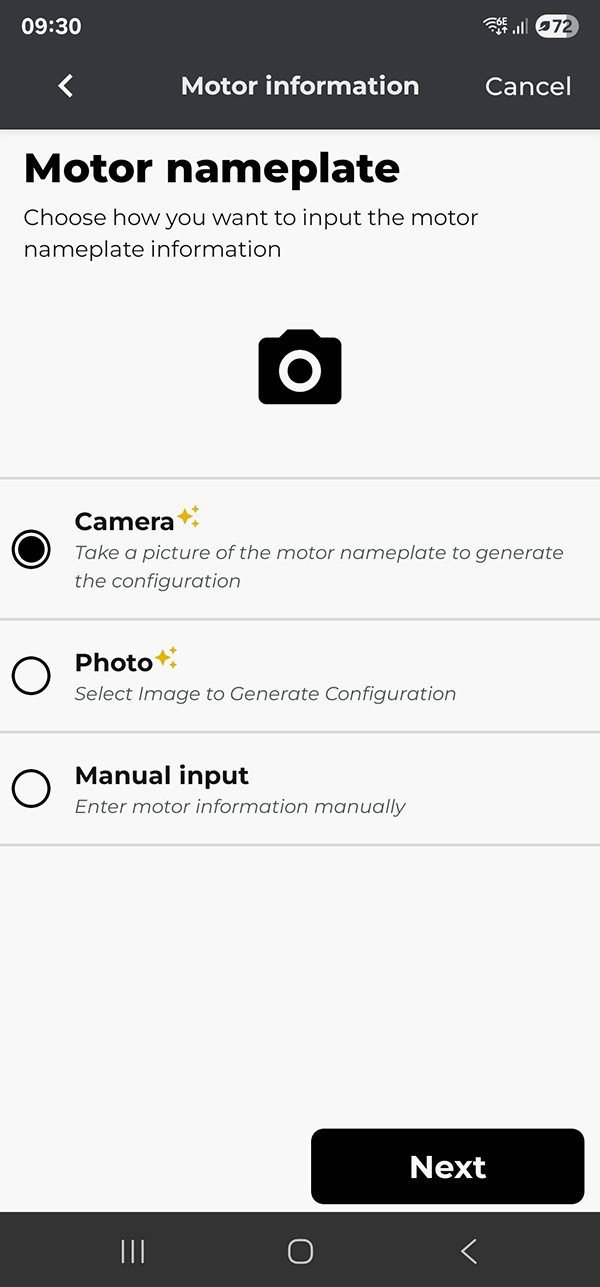
You can capture motor nameplate data in three ways: using a camera (AI), selecting a Photo (AI), or manually entering the data.
This section explains when to use each method, how to proceed, and what happens behind the scenes.
Before you begin:
- Internet required for AI: Camera (AI) and Photo (AI) need an active internet connection. If the phone is offline, these options are unavailable, and you’ll be prompted to use Manual input.
-
Data storage:
- Any photo you capture or select is automatically saved in the app’s local database, allowing you to review it later.
- AI-extracted parameters are saved separately from your corrected values. This preserves a clean audit trail.
Option 1 — Camera (AI)
Use this when you’re in front of the motor and can take a clear, straight-on shot of the nameplate.
- Tap Camera (AI).
- Frame the entire nameplate. Use on-screen tools:
- Torch: tap the torch icon to toggle the phone’s light on/off.
- Tap the Capture button.
-
Review the image:
- If it’s blurry, glarey, or cropped: tap Retry to return to the input method selection screen.
- If it’s good: tap next to use the photo.
- The app uploads the image for AI processing.
- If the nameplate lists multiple voltage/frequency setups, you’ll be prompted to select the setup you intend to use (e.g., 460 V @ 60 Hz, 400 V @ 50 Hz).
-
The app shows a Summary of detected parameters. You can review and edit any field.
- Tap Continue to proceed to the next step of the commissioning wizard.
If AI can’t extract critical parameters (e.g., rated voltage, frequency, rated power, rated current, poles/base speed), you’ll see a failure notice, and the app will propose you to try again.
Option 2 — Photo (AI)
Use this when you already have a good picture of the nameplate (e.g., from your gallery or a prior site walk).
- Tap Photo (AI).
- Select an existing image that clearly shows the full nameplate.
- The selected image is saved to the app’s database and uploaded for AI extraction.
- If multiple setups are detected, choose the desired voltage/frequency setup.
- Review and edit values on the Summary screen.
- Tap Continue.
Option 3 — Manual input
Use this when AI is unavailable (no internet) or the photo is unreadable.
- Tap Manual input.
-
Enter the nameplate fields. Typical required fields include:
- Rated voltage (V)
- Rated current (A)
- Rated power (kW or HP)
- Frequency (Hz)
-
Number of poles
-
Rated spinning speed (rpm)
-
Min frequency
-
Max frequency
-
Power factor
-
Optional: Brand, motor part number, phase reversal
-
Review and confirm on the Summary screen, then tap Continue.
Summary screen
After any method, you’ll land on a Summary page listing all nameplate parameters. Here you can:
-
Adjust fields as needed; dependent fields recalculate automatically where applicable.
-
Confirm to move on in the wizard.
Privacy & storage
-
Photos and parameter data are stored in the app’s local database on the phone.
-
You can review or remove stored photos later from the app’s data management screens (when available).